
Overview
Pathways are the module responsible for automating clinical workflows and processes. This workflow automation builder allows you to design and implement processes using rule-based decision trees. Each pathway consists of nodes that you can drag and drop to create your workflow. Pathways help you automate clinical triage by defining a series of rules and recommendations based on referral information.Semi-Auto Mode
Pathways in this mode are triggered manually on demand by the user. This mode operates when a user needs to execute a workflow on-demand rather than having it run automatically on every referral.Video Overview
System Introduction
Watch this overview to understand how the system works:Pathway Builder Demo
Watch this demo to see the pathway builder in action:Node Types
There are mainly three types of nodes you can use:- Trigger - Decision points with rules that evaluate to true/false
- Recommendation - Final outcomes (Accept/Return with triage category)
- Manually Run - Starting point for semi-automatic pathways
Creating Your First Pathway
Step 1: Identify Clinical Criteria
Before building a pathway, you need to identify the clinical criteria that will guide your decision-making process. This ensures your pathway is based on evidence-based guidelines and established medical standards. Example: For a shoulder pain pathway, you might use the Queensland Health Clinical Prioritisation Criteria for Shoulder Pain, which provides validated guidelines for triaging orthopaedic referrals.Step 2: Create a New Pathway
- Navigate to Decision Support in the sidebar
- Click New Pathway
-
A slider interface will appear prompting you to:
- Enter a name for the new pathway (e.g., “Shoulder Pain”)
- Optionally add a description
- Choose how to proceed with one of three options: Start from Scratch Provides a clean slate for pathway design, allowing for maximum customisation. Use this when you need full control over the workflow structure. Use a System Template Choose from a library of pre-designed templates provided by the system, offering a convenient starting point for common pathway structures. Use Existing Custom Templates If your team has previously created and saved custom templates, these can be accessed and applied to the new pathway.
- Click Use This Template (or Start if building from scratch)
- You’ll be transitioned to the primary pathway design interface
Step 3: Build the Decision Tree
Adding Nodes
Drag nodes from the node palette on the left side into the canvas:- Drag a Trigger node to create a decision point
- Drag a Recommendation node to create an outcome
- Connect nodes by clicking on the connector points
Example: Shoulder Pain Pathway
Here’s how a simple shoulder pain pathway looks: Here’s what this pathway looks like in the actual interface: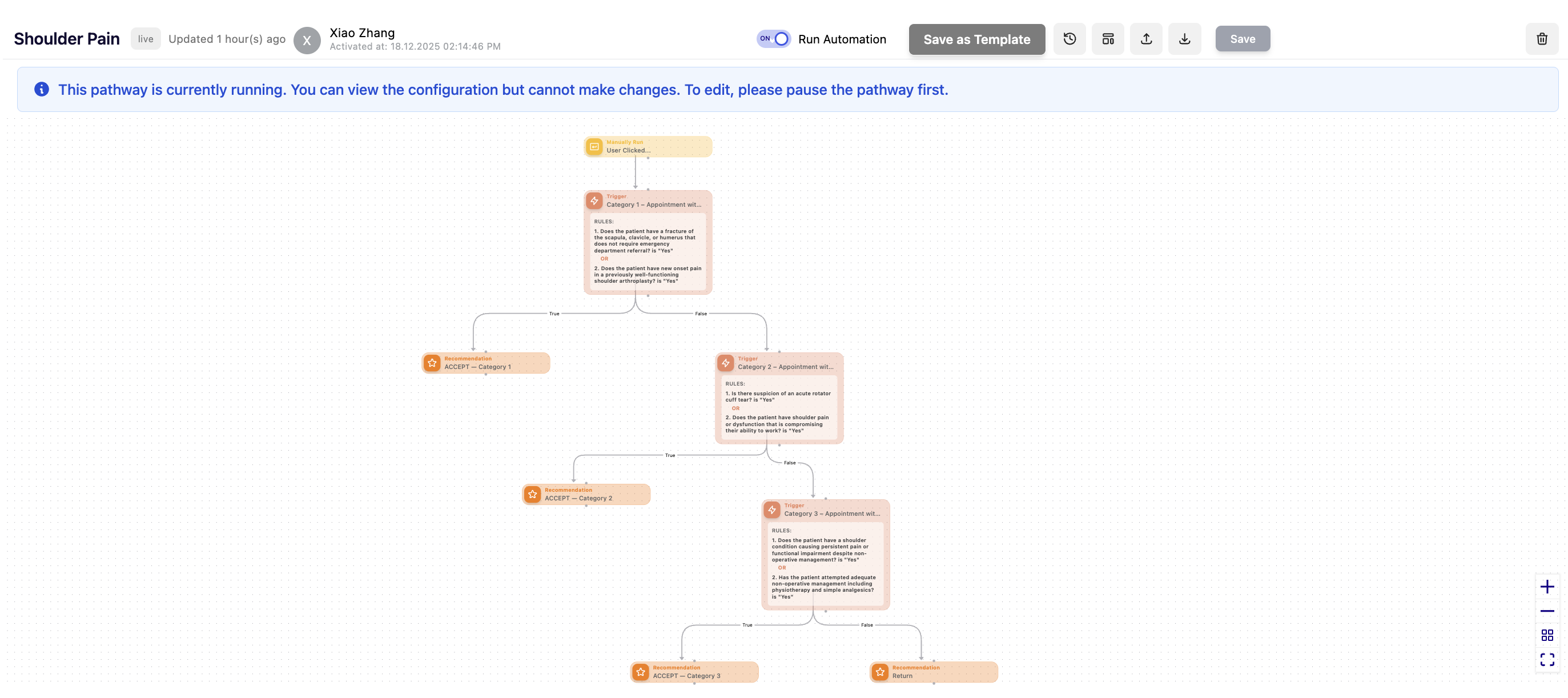
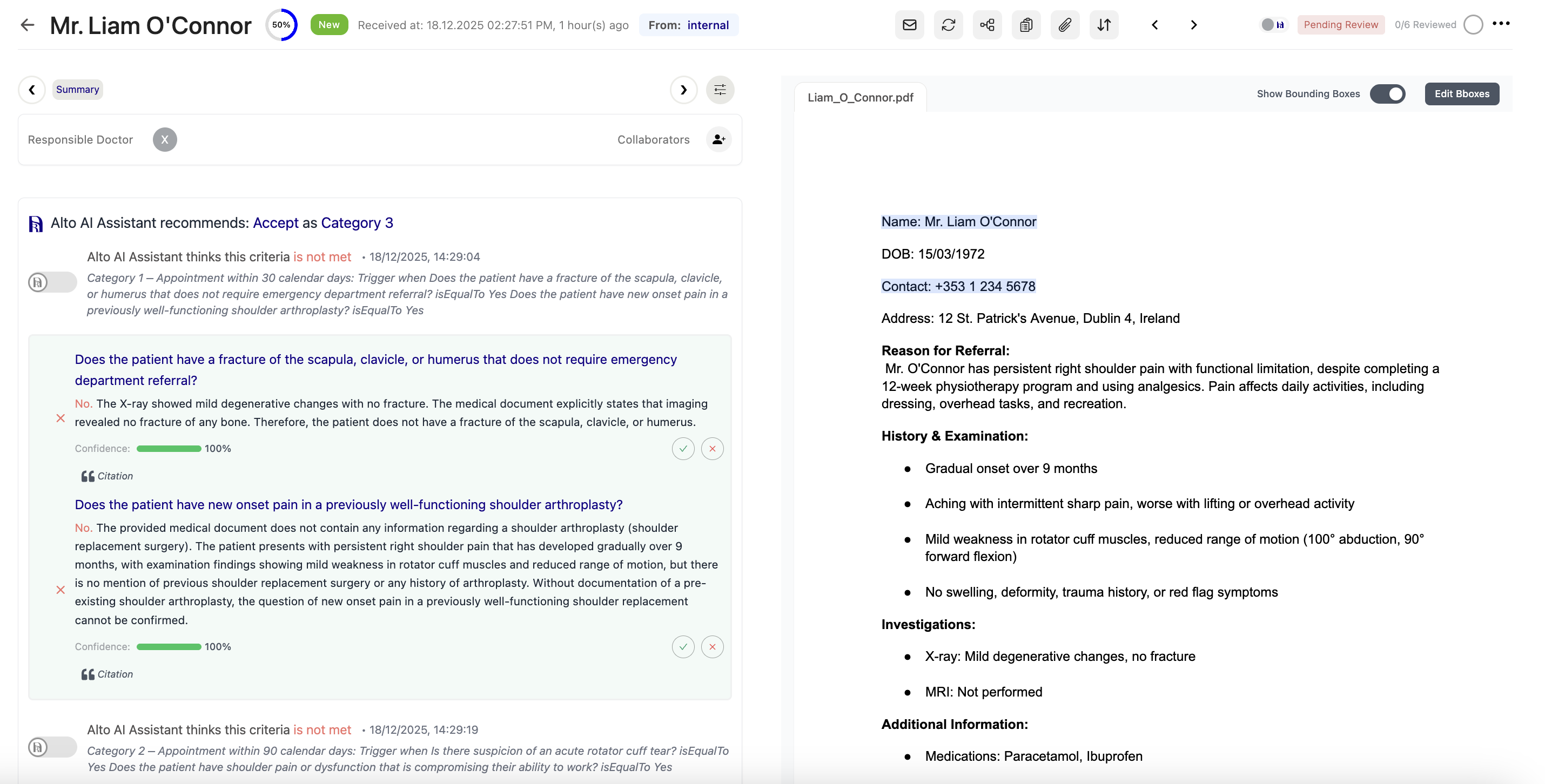
Step 4: Configure Trigger Nodes
Click on a Trigger node to configure its rules:- Name - Brief description (e.g., “Category 1 – Appointment within 30 calendar days”)
- Add Rules - Click ”+ Add Rule”
- Set up each rule:
- Question - The prompt to evaluate (e.g., “Does the patient have a fracture?”)
- Expected Value - What answer triggers “true” (usually “Yes”)
- Operator - Choose OR if any rule can trigger, AND if all must match
Step 5: Configure Recommendation Nodes
Click on a Recommendation node to set the outcome:- Name - Outcome description (e.g., “ACCEPT — Category 1”)
- Recommendation - Choose: Accept or Return
- Triage Category - If Accept, choose: Category 1, Category 2, Category 3, or — (none)
Highly Customizable: The recommendation types (Accept/Return) and triage category names (Category 1, 2, 3) shown here are examples. You can configure these with any naming convention that suits your clinical workflow and organizational needs.
- Category 1 - Appointment within 30 days (urgent)
- Category 2 - Appointment within 90 days (semi-urgent)
- Category 3 - Appointment within 365 days (routine)
Step 6: Arrange and Connect
- Drag nodes to arrange them visually
- Nodes automatically save their position
- Use the canvas zoom controls to get a better view
- Ensure all Trigger nodes have both True and False branches connected
Step 7: Activate Your Pathway
- Click Save to save your changes
- Click Activate to make the pathway live
- The pathway will now run automatically on new referrals
Common Patterns
Priority-Based Triage
Most pathways follow this pattern:- Check for highest priority (Category 1) first
- If false, check next priority level (Category 2)
- If false, check lowest priority (Category 3)
- If all false, return the referral
Multi-Condition Checks
Use OR operators when any condition should trigger acceptance:- “Fracture” OR “Post-surgical pain” → Accept Category 1
- “Chronic pain” AND “Failed conservative treatment” → Accept Category 3